
Converting files in PressKit
The customer sends a PDF and wants a JPEG for the website. A colleague sends a PSD and you want TIFF in CMYK. The RIP chokes on live transparency and you want a flat PDF. PressKit's Convert does exactly that — locally, on your computer, with nothing uploaded anywhere.
Select a file (or several) in PressKit and hit Convert in the top bar.
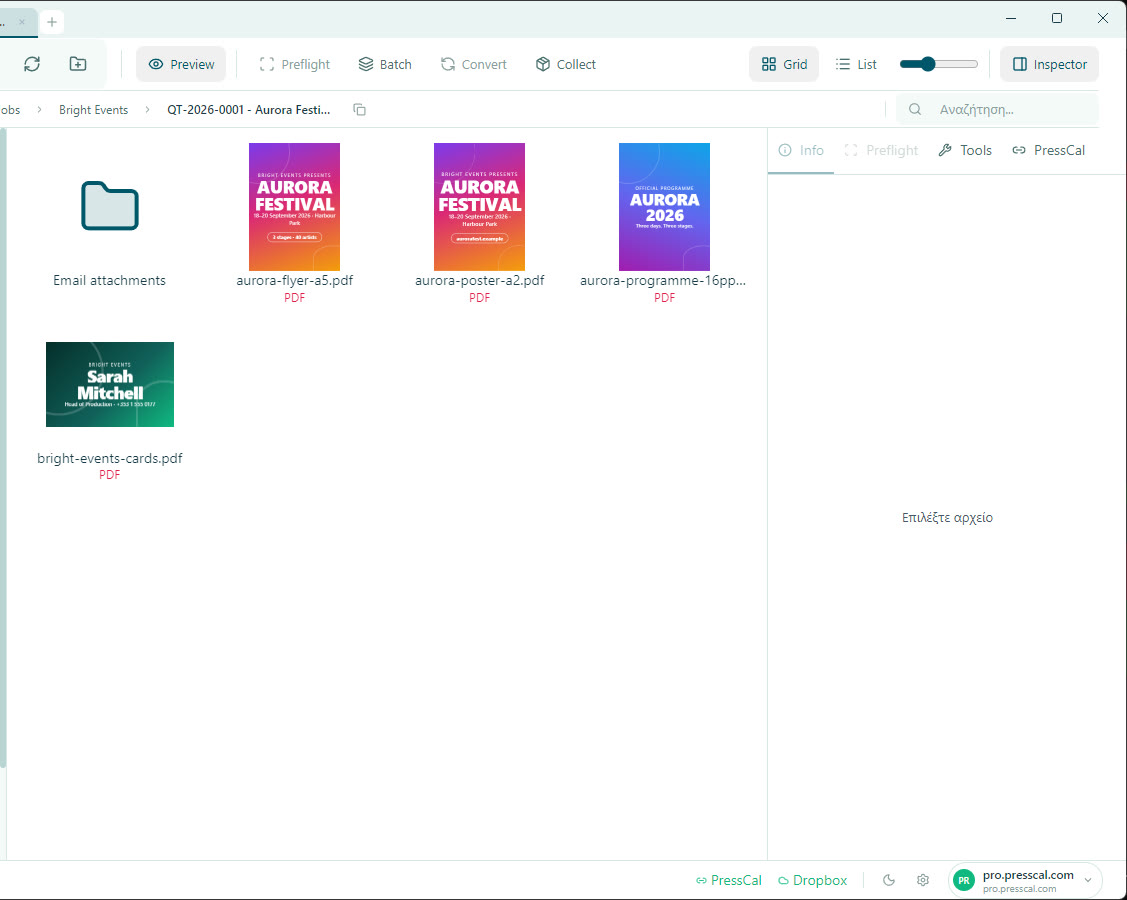
What goes in and what comes out
In: PDF, AI, EPS · PSD and PSB · JPG, PNG, TIFF, WEBP, BMP, GIF.
Out: PDF, TIFF, PNG, JPG.
The result is written next to the original with a _converted suffix — e.g. aurora-poster-a2_converted.jpg. The original is never touched.
The settings, one by one
- Format — the output format.
- Color — CMYK, sRGB or "keep" (leave it as it is).
- DPI — the resolution the PDF is rendered at.
- Dimensions (mm) — maximum width/height; the file scales down proportionally.
- Flatten — flatten transparency.
- Crop TrimBox — crops to the TrimBox, i.e. throws away bleed and crop marks. That's what you want for a customer preview; that's what you do not want when preparing a file for print.
Two things to know before you complain
1. CMYK only works in TIFF and PDF. JPG and PNG don't support CMYK — that's a limit of the formats themselves, not of PressKit. Ask for a CMYK JPEG and you'll get an RGB file. Need CMYK raster? Ask for TIFF.
2. PDF, AI and EPS need Ghostscript. The engine doing the work is Ghostscript, and it's installed separately on Windows — it doesn't ship with PressKit. If you see "Ghostscript not found", your file isn't at fault: Ghostscript is missing. Image conversions (JPG, PNG, TIFF, PSD) work without it.
PDF → PDF: the flat file
Putting a PDF in and asking for a PDF out isn't a wasted move: the file is rewritten without live transparency, at PDF 1.4 compatibility, and optionally with all colour converted to CMYK or sRGB. It's the classic fix for older RIPs that trip over transparency, and for artwork that arrived in RGB from the designer.
Many files at once
For a whole folder, Batch scans and works through them in bulk. It recognises PDF, AI, PSD, PSB, EPS, TIFF, PNG, JPG, SVG and INDD, with an option to go into subfolders too.